Mirror
Mirror reflects sketch geometry across a line or an axis. Draw one half of a symmetric profile, mirror it, and the two halves join into one region.
In the viewport
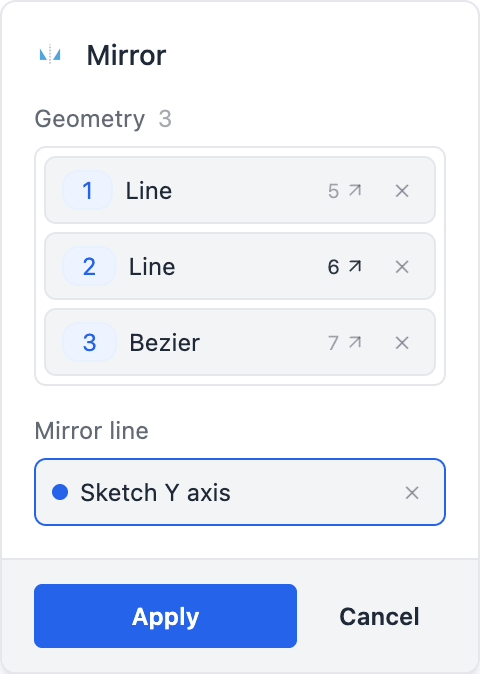
- Click Mirror on the sketch toolbar (shortcut M). The Mirror dialog opens docked on the right with a Geometry slot and a Mirror line slot.
- Click the sketch edges to mirror — lines, arcs, circles, ellipses, points and beziers (a bezier mirrors control point by control point). Picks accumulate as chips; click a picked edge again, or a chip's ✕, to drop it.
- Click the Mirror line slot, then click a sketched line in the viewport (a guide works too), or the sketch's own X or Y axis line. An axis pick shows as the chip Sketch Y axis and is written as
xAxis()/yAxis(). The reflection previews in blue, and the statements about to be written show under the dialog. - Click Apply.
The tool does not write a mirror() statement. Like the Rectangle tool, it writes ordinary geometry: one reflected line() / arc() / circle() / point() per picked entity, each held to its original by a symmetric constraint across the mirror line:
const l2 = line([-30, 8], [-10, 2]);
symmetric(l1, l2, yAxis());
The mirrored geometry is yours: drag it, dimension it, delete a copy, or delete the constraint to set it free. Dragging a mirrored edge moves its original through the constraint, and the other way round.
By hand
The mirror() command is the hand-written alternative: one statement that reflects whole geometry, with its images addressable as m.instance(l). Double-click a mirror() row in the timeline to reopen the dialog and re-pick its geometry or line.
mirror(line)                            // mirror everything across a sketched line
mirror(line, g1, g2, ...)               // mirror specific geometry across a line
mirror(yAxis())                         // mirror across the sketch's own Y axis
mirror(xAxis(), g1, g2, ...)            // mirror specific geometry across the sketch's X axis
mirror("y", g1, g2, ...)                // across a WORLD axis — see below
Any sketched line can be the mirror line, including a guide you do not want in the profile. Write the statement after the constraints — mirror consumes solved geometry.
The code behind it
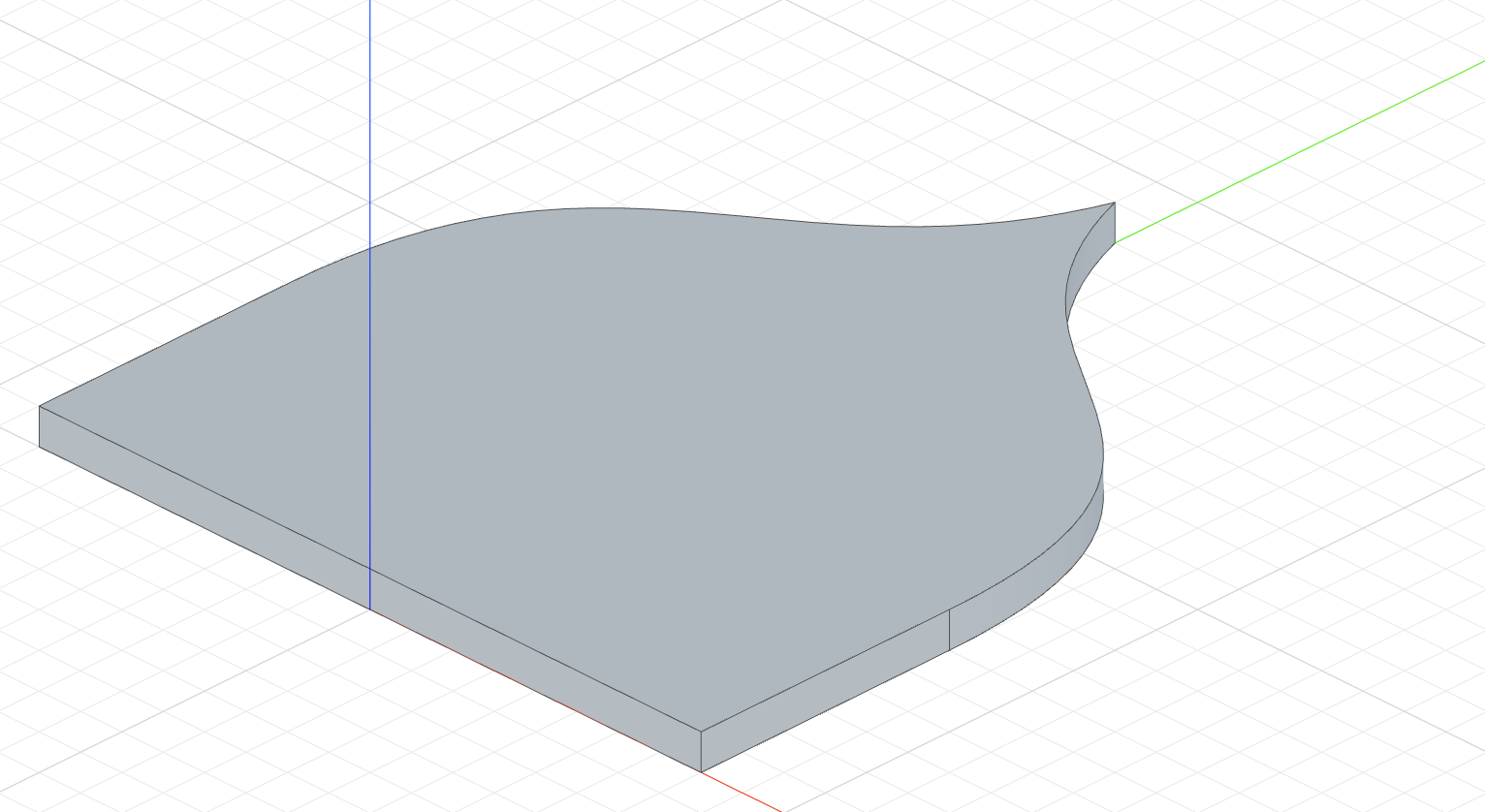
The tool writes the datum form, mirror(yAxis(), base, side, top). On the XY plane the world axis "y" is the same line, which is what this hand-written example uses.
import { bezier, extrude, line, mirror, sketch } from 'fluidcad/core';
import { coincident, horizontal, vertical, fix, distance } from "fluidcad/constraints";

// A latch plate: the right half is drawn, the left half is its mirror.
sketch("xy", () => {
    const base = line([0, 0], [40, 0]);
    const side = line([40, 0], [40, 30]);
    // The curved top, sweeping in to the tip on the axis.
    const top = bezier([40, 30], [40, 70], [10, 60], [0, 90]);
    coincident(base.end(), side.start());
    coincident(side.end(), top.start());
    horizontal(base);
    vertical(side);
    fix(base.start(), [0, 0]);
    distance(base.start(), base.end(), 40);
    distance(side.start(), side.end(), 30);
    // Mirror the half across world Y. On the XY plane world Y is the
    // sketch's own vertical, so the two halves meet on the axis and close.
    mirror("y", base, side, top)
})

extrude(4)
Mirrored geometry and constraints
The mirrored copies are solver entities in their own right, rigidly tied to their sources across the mirror line: they move when the source moves, and constraining a copy drives the source. When the mirror line is a sketched line, the tie follows it too — constraining a copy can move the line. In the viewport, pick a mirrored edge or one of its vertices exactly like drawn geometry; the constraint bar and the drawing tools' snaps write the statement for you.
By hand, address a copy with m.instance(source) — the mirrored statement, never one of its points:
const m = mirror(yAxis(), l, c)
coincident(m.instance(l).start(), p)        // the copy's vertex, tied back to l
radius(m.instance(c), 8)                    // dimensions the source circle too
m.instance(cp.instance(2)) addresses the mirror image of a copy instance, and m.instance(l) is also a whole-geometry operand (offset(2, m.instance(l))). The mirror line itself has no image: constrain it directly. Geometry the mirror does not stamp — written after it, or not among its targets — and geometry without solver identity (an offset result) error as targets.
Sketch axes and world axes
Bare axis strings like "x" and "y" always mean world axes. On the XY plane that is also the sketch's own X and Y, but on other planes it is not:
// ✗ collapses: world Y is the front plane's normal
sketch("front", () => {
    const b = bezier([200, 200], [-120, 380], [200, 450], [0, 600])
    mirror("y", b)
})
The sketch's own axes are the datums xAxis() and yAxis() — the same fixed lines constraints target (collinear(xAxis(), l)), accepted here as the mirror axis:
The code behind it
import { bezier, extrude, line, mirror, sketch, yAxis } from 'fluidcad/core';
import { coincident, horizontal, vertical, fix, distance } from "fluidcad/constraints";

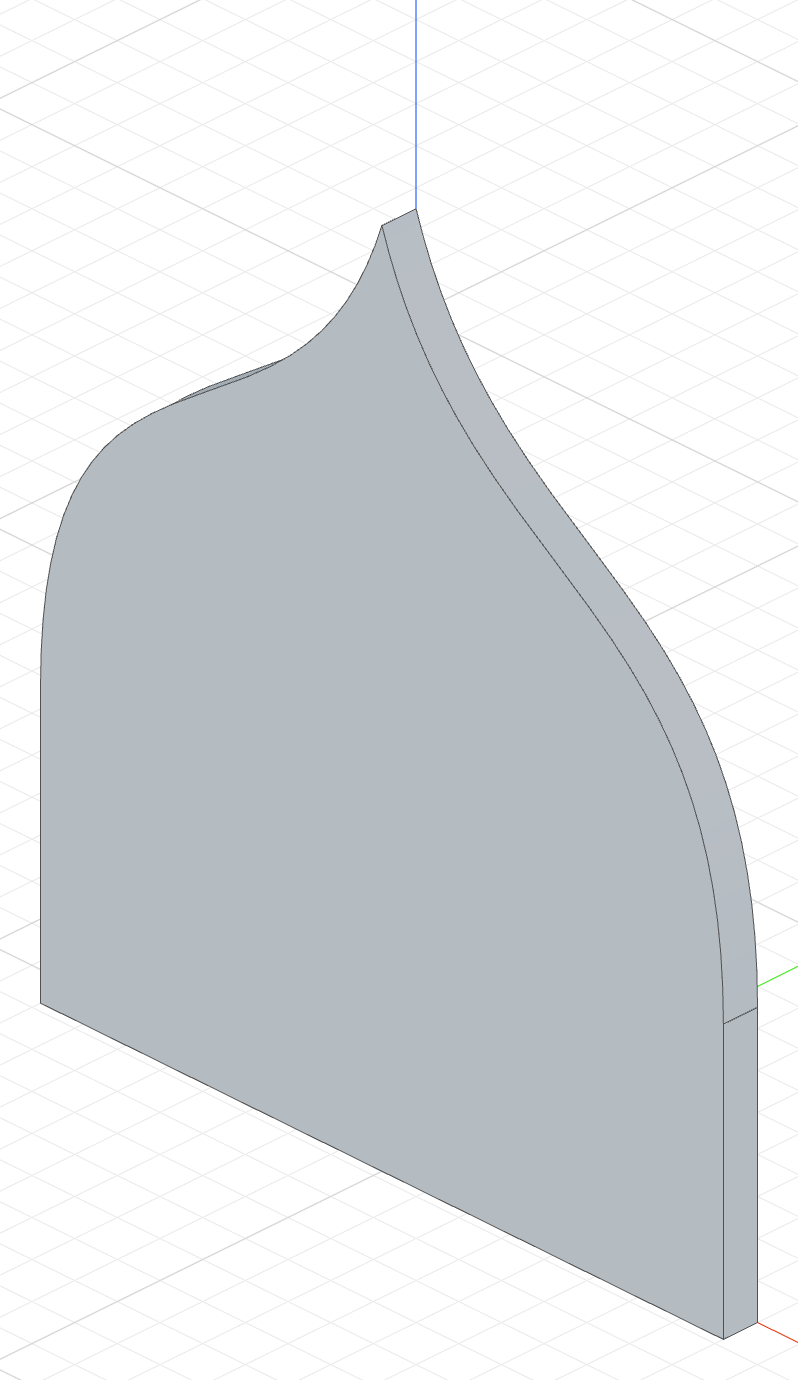
// The same latch plate, drawn standing up on the front plane.
sketch("front", () => {
    const base = line([0, 0], [40, 0]);
    const side = line([40, 0], [40, 30]);
    const top = bezier([40, 30], [40, 70], [10, 60], [0, 90]);
    coincident(base.end(), side.start());
    coincident(side.end(), top.start());
    horizontal(base);
    vertical(side);
    fix(base.start(), [0, 0]);
    distance(base.start(), base.end(), 40);
    distance(side.start(), side.end(), 30);
    // On the front plane world Y is the plane normal — mirroring across it
    // would collapse the half. yAxis() is the sketch's vertical (world Z).
    mirror(yAxis(), base, side, top)
})

extrude(4)
| Sketch plane | xAxis() | yAxis() |
|---|---|---|
"xy" / "top" | world +X | world +Y |
"xz" / "front" | world +X | world +Z |
"yz" / "right" | world +Y | world +Z |
The datums work with face sketches and custom plane() objects, and they are per argument — bare strings in the same call stay world-relative:
sketch("front", () => {
    copy("linear", [yAxis(), "x"], { count: 2, offset: 30 }, shape)
})
You do not need the datums when the mirror line is a sketched line (it already lies on the plane), or on sketch("xy"), where world and sketch axes agree.
For mirroring a feature rather than sketch geometry, see Patterns → Repeat; for solids, Transforms → Mirror.